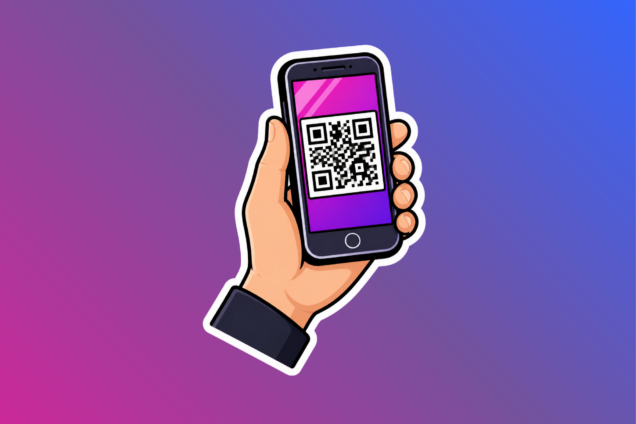
What is a QR code and how do they work?
A QR code (Quick Response code) is a barcode made up of black and white squares that can be scanned using a smartphone or tablet. When scanned, it quickly opens information such as a website, form, document, or contact details. Most smartphones can scan QR codes using the camera app, with no extra app needed.
How to scan a QR code
Most Android phones can scan QR codes directly using the camera app.
Using your camera app
- Open your phone’s camera app
- Point the camera at the QR code
- Hold your phone steady for a few seconds
- A notification or link should appear on your screen
- Tap the notification to open the content
If your camera does not scan a QR code
You will need access the Play Store and download a QR reader app for free.
Once downloaded, open the QR reader app and scan the QR code.
Using quick settings
You can also scan QR codes using your phone’s Quick Settings menu:
- Swipe down from the top of your screen
- Tap the QR Scanner icon
- Point your camera at the QR code
- Tap the link that appears
Using the camera app
- Open the camera app from your Home Screen, Lock Screen, or Control Centre.
- Point your device at the QR code
- Wait for the code to be recognised
- Tap the link that appears on your screen
Using code scanner in Control Centre
- Open Control Centre
- Tap the Scan Code button
- Point your camera at the QR code
- Tap the link that appears
Adding code scanner to Control Centre
- Open Control Centre
- Touch and hold the background of the screen
- Tap Add a Control
- Select Scan Code from the list
Using the camera app
- Open the camera app
- Make sure QR scanning is turned on: Tap settings > Select More settings > Tap Camera scan suggestions > Ensure it is switched on
- Point your camera at the QR code
- Wait for the link or notification to appear
- Tap the link to open it
Using Quick Settings
- Swipe down from the top of your screen
- Tap Scan QR Code
- Point the scanner at the QR code
- Tap the link that appears
Tips if a QR code will not scan
If you are having trouble scanning a QR code, try the following:
- Hold your phone steady
- Make sure the QR code is fully visible on your screen
- Move closer to the code
- Improve the lighting
- Avoid glare or shadows
- Clean your camera lens with a soft cloth
If the code still does not work, the QR code may be damaged or expired.